Follow the steps below to set up you required company email signature in the Outlook Mobile App. (iPhone & Android users)
1. Open the Outlook Mobile App
Locate and open the Outlook app on your phone.
2. Open the Settings Menu
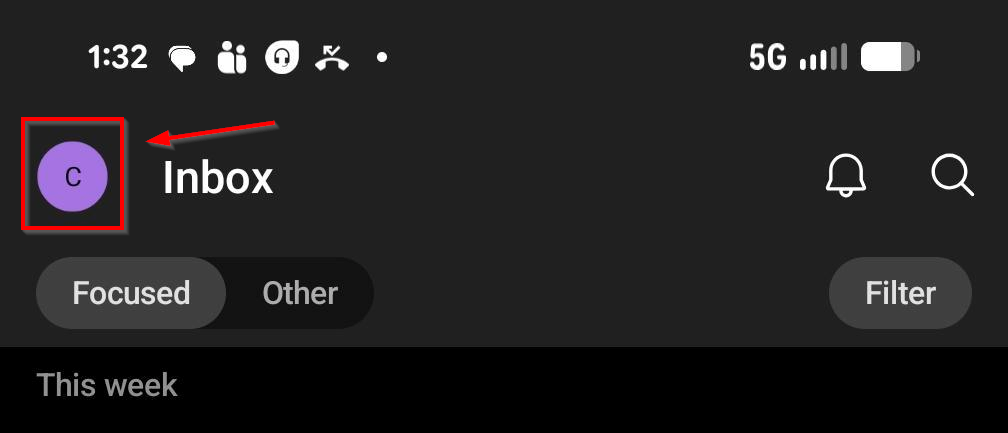
- Tap the profile icon in the top left corner (this will usually show the first initial of your name)
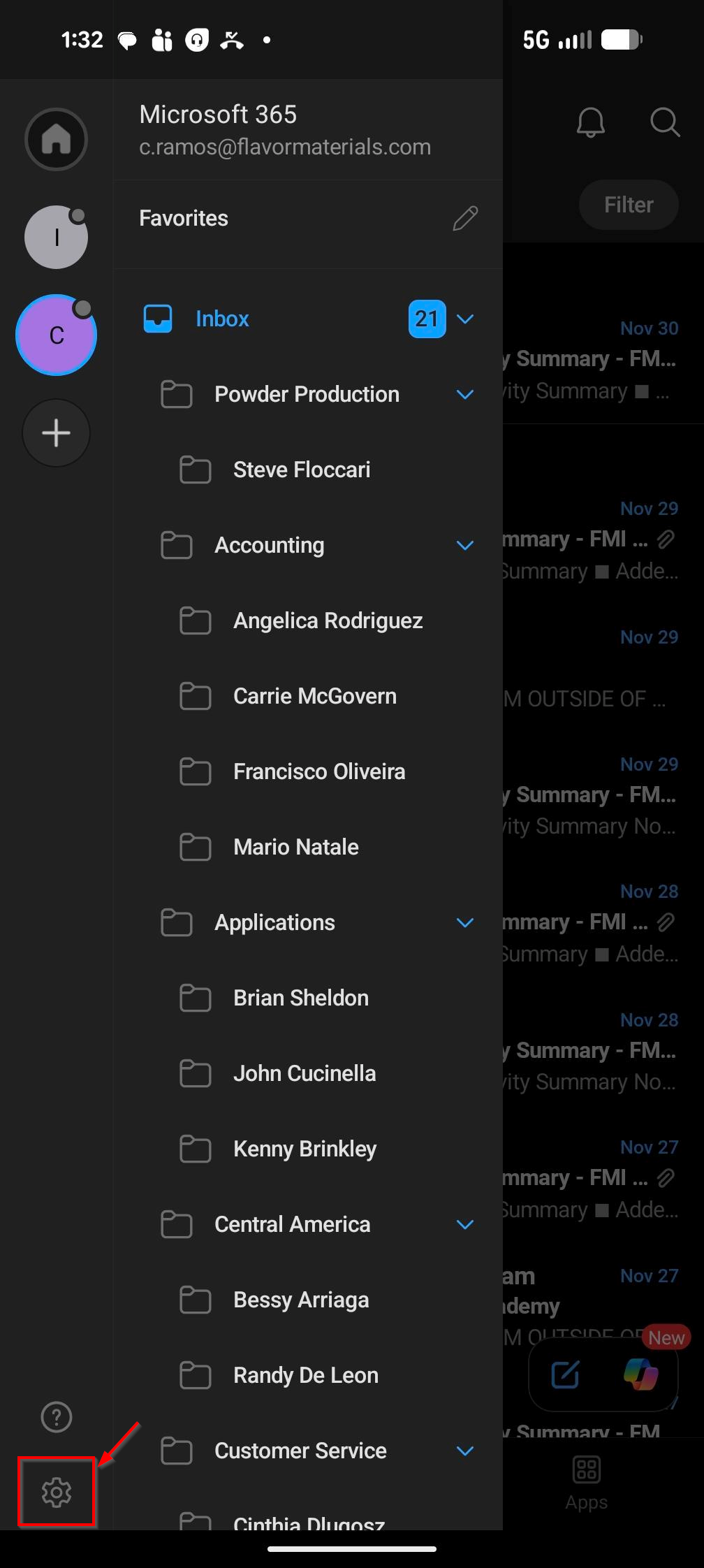
- At the bottom left corner of the panel that opens, tap the gear icon to access Settings.
3. Go To Signatures Settings
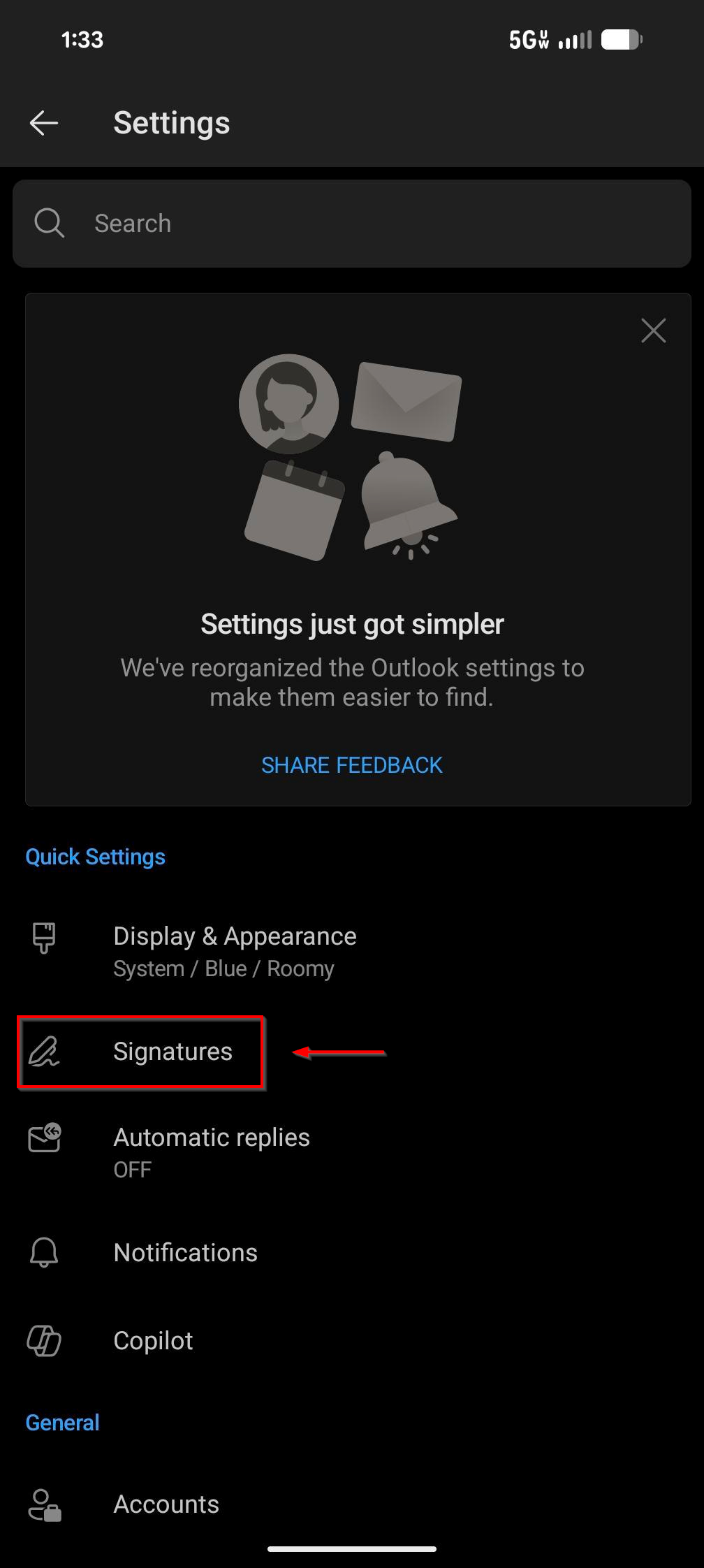
Under Quick Settings, select Signatures.
4. Enable Per Account Signatures
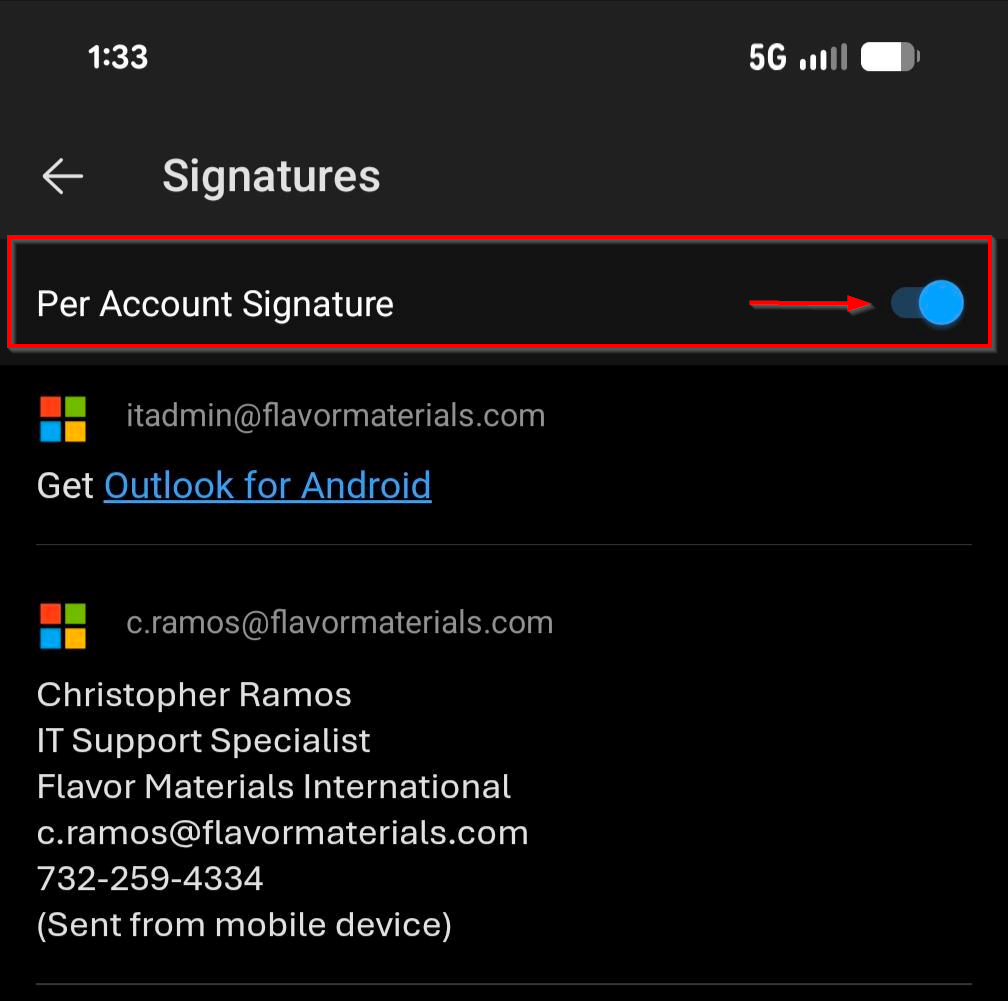
Make sure Per Account Signature is toggled On.
This ensures your FMI email uses the correct company signature.
5. Select Your Email Account
Tap your account (example: c.ramos@flavormaterials.com)
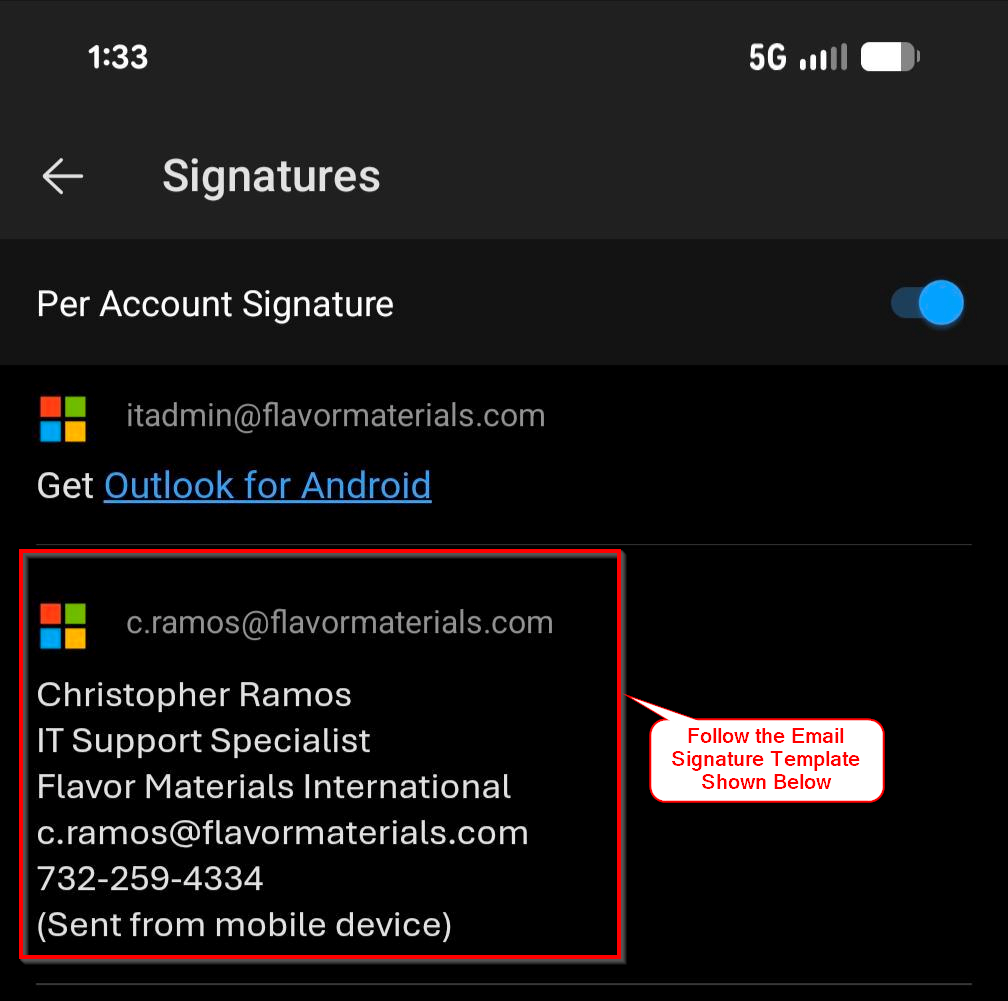
6. Apply the Required FMI Mobile Signature
Replace any existing text with the required mobile signature template shown below.
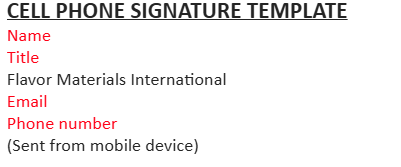
IMPORTANT: All fields shown in RED in the template (Name, Title, Extension, and Email) must be personalized correctly before saving.
7. Save your Changes
Simply back out of the settings menu and Outlook will save the signature automatically.
Was this article helpful?
That’s Great!
Thank you for your feedback
Sorry! We couldn't be helpful
Thank you for your feedback
Feedback sent
We appreciate your effort and will try to fix the article