Follow the steps below to set up your email signature in the classic version of Microsoft Outlook.
1. Open Outlook
Launch the Outlook application on your computer.
2. Navigate to Outlook Settings
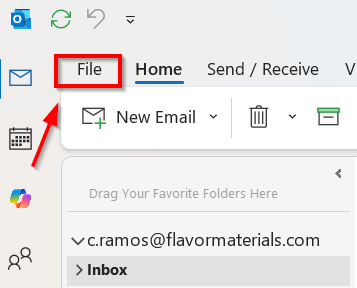
- Select File in the top left corner of the window.
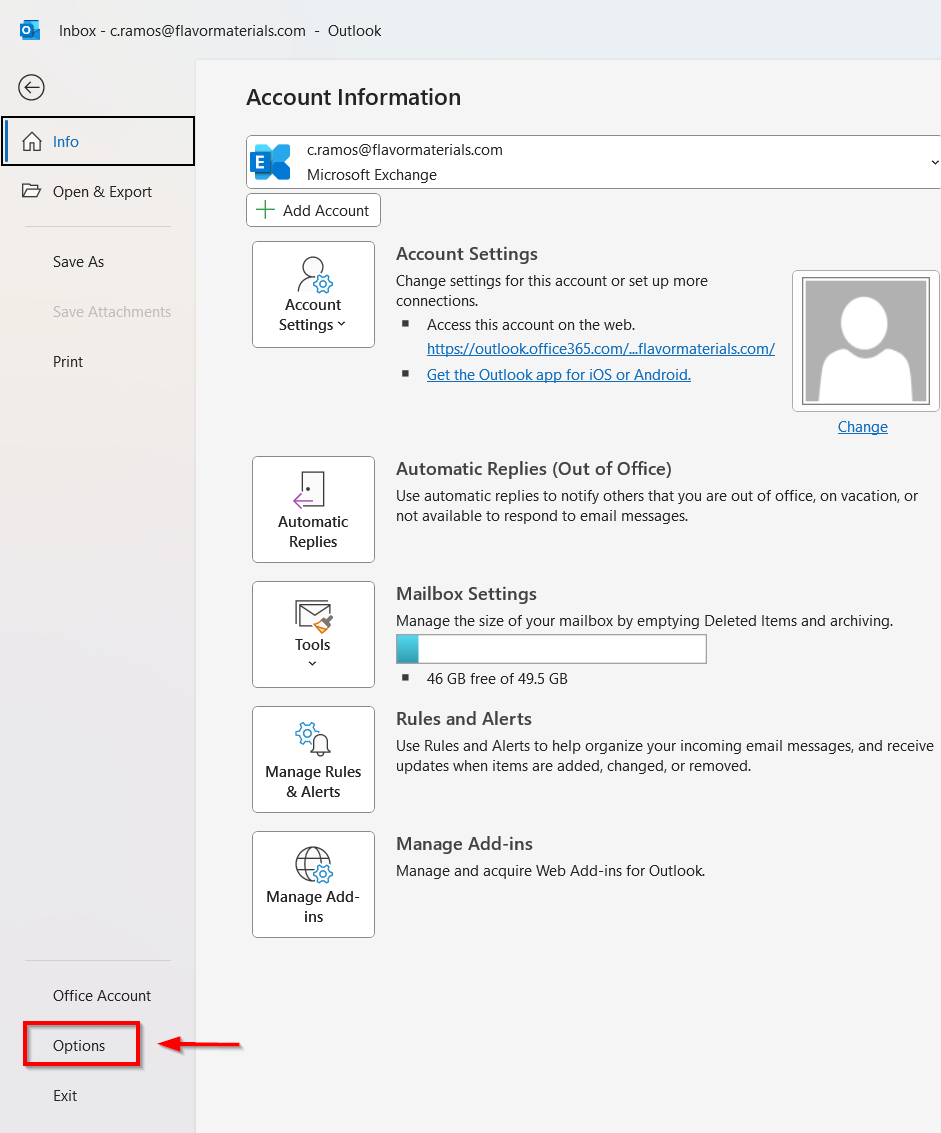
- At the bottom of the left hand menu, click Options.
3. Open Mail Settings
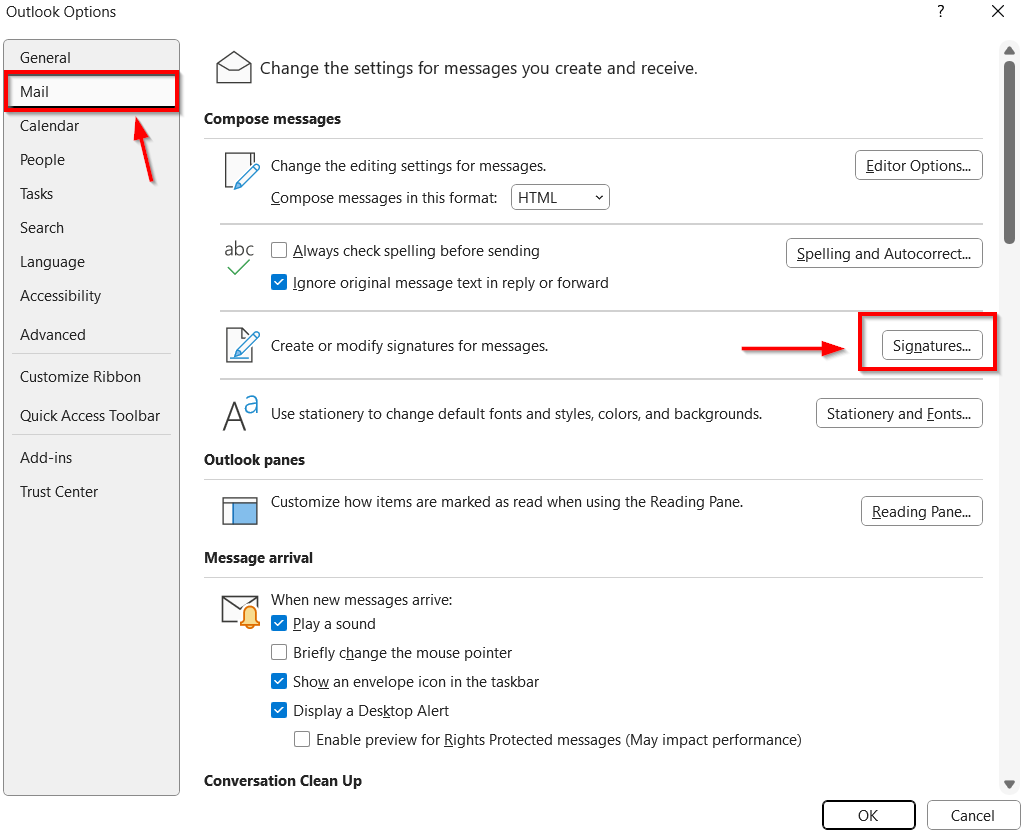
In the Outlook Options window, select Mail from the list on the left side.
4. Open the Signature Menu
Under the Compose messages section, click the Signatures button.
5. Create or Edit Your Signature
A Signature and Stationery window will appear.
- Select New to create a new signature, or choose an existing one to update.
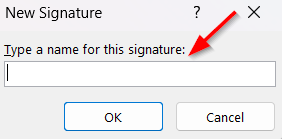
- If new a "New Signature" window prompt will appear which you will enter the name of your signature
- In the Edit signature area, please use the required company email signature template below.
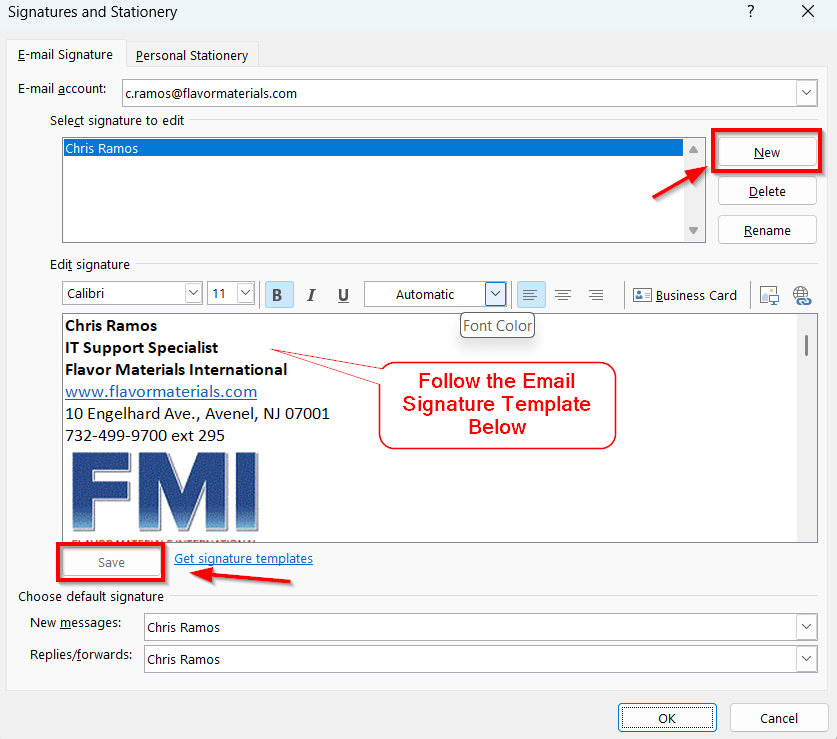
Note: All fields marked in RED (Name, Title, Extension, Email) must be personalized before saving. When starting a new line you must use SHIFT + ENTER or else the template will be spaced out.
E-MAIL SIGNATURE TEMPLATE
Name
Title or Department
Flavor Materials International
10 Engelhard Ave, Avenel NJ 07001
(732) 499-9700 x3digit phone extension

6. Save Your Signature
Click Save.
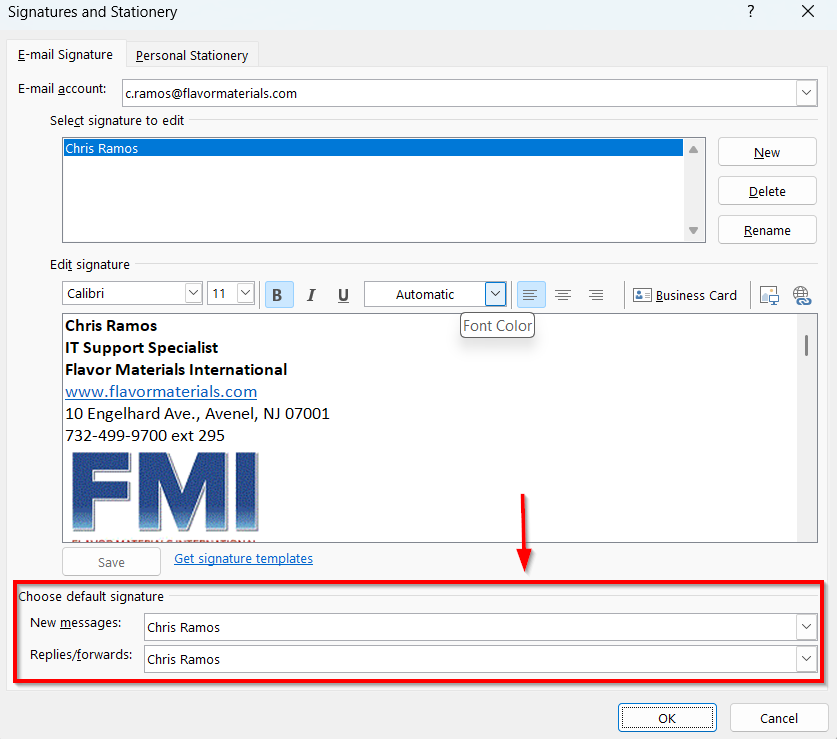
7. Set Default Signature
Under Choose default signature, assign your signature for:
- New messages
- Replies/forwards
Select your name in both dropdowns.
8. Finish
Click OK to close Signatures and Stationery, then click OK again to exit Outlook Options.
Your required company signature is now applied.
Was this article helpful?
That’s Great!
Thank you for your feedback
Sorry! We couldn't be helpful
Thank you for your feedback
Feedback sent
We appreciate your effort and will try to fix the article