Old Outlook Version
1. Open Outlook
2. Top Left hand side look for the tab "Home" and select that
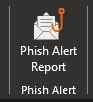
3. To the far right of that same pane should be a "Phish Alert Report" button
4. A new window will pop up on the right hand side of your screen
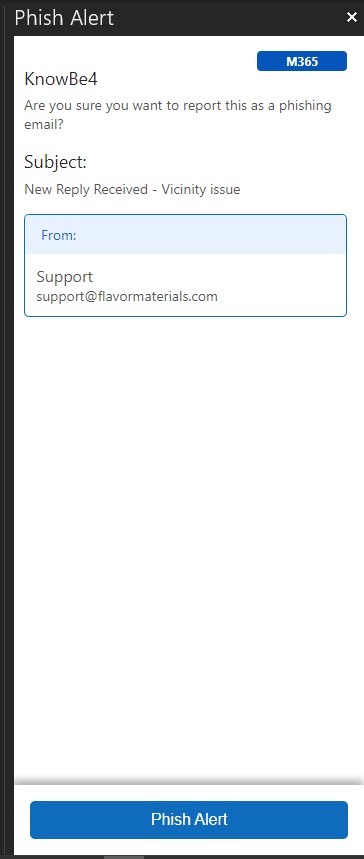
5. To submit the Phishing email select "Phish Alert"
New Outlook Version
1. Open Outlook
2. Click on email you feel is suspicious
3. To the right of the button "reply" you will see a email with a fish hook. This is the Phish Alert Report button in the new version of outlook

4. A window prompt will appear
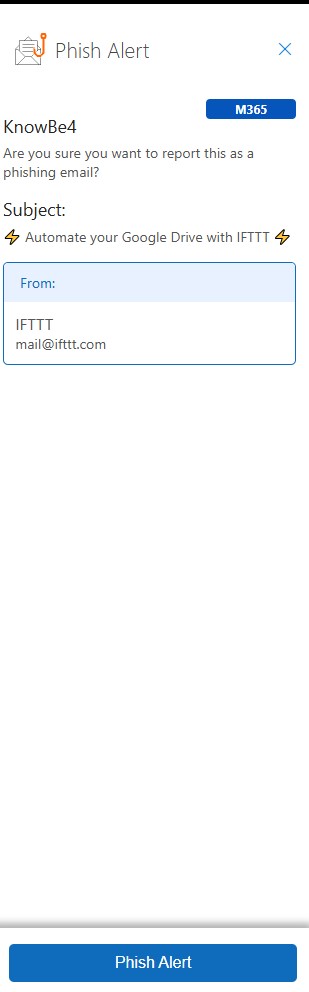
5. To submit the Phishing email select "Phish Alert"
Was this article helpful?
That’s Great!
Thank you for your feedback
Sorry! We couldn't be helpful
Thank you for your feedback
Feedback sent
We appreciate your effort and will try to fix the article