Here is a detailed walkthrough on how to configure your out-of-office status.
1. Open Outlook
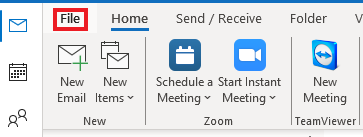
2. Select "File" in the top left corner of Outlook
3. Here you should see the option to select "Automatic Replies (Out of Office)"
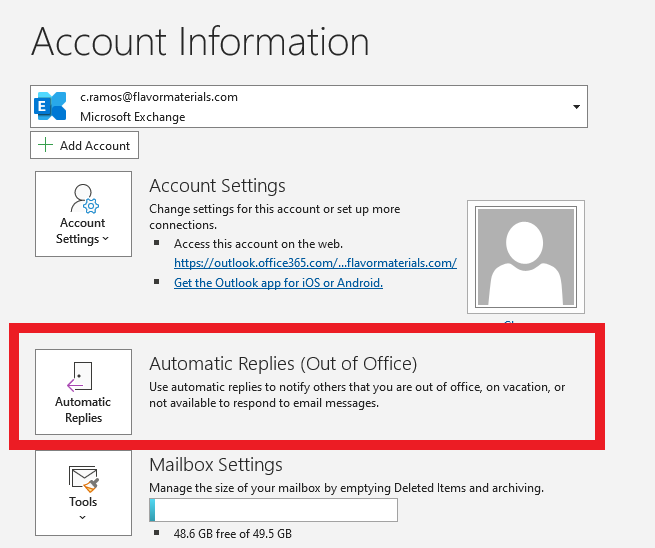
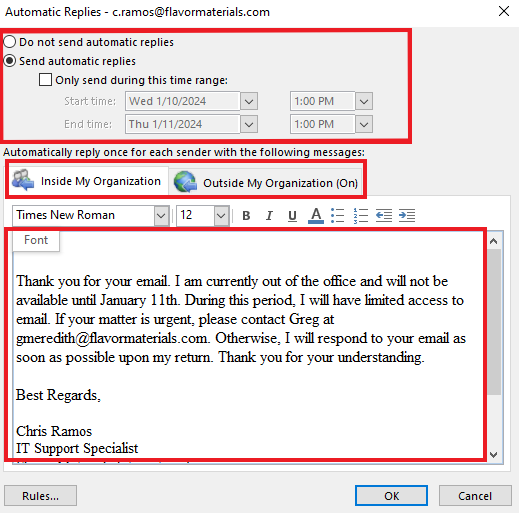
4. After selecting the Automatic Replies option a new window prompt will display
5. Here you will select "Send Automatic Replies"
6. If you will be away for an extended period of time you can check the box that says "Only Send during this time range" and choose the dates that you will be away from the office.
7. You will then see a tab that says "Inside my Organization" and a body to enter your out of office message. This will display your out of office to users only within the organization if they are sending you an email.
8. If you have customers or clients then you will also want to enter that same information entered in step 7 into the tab that says "Outside my Organization". This will display your out of office message to users outside the organization when they send you an email.
9. Hit OK after completing steps 7 & 8
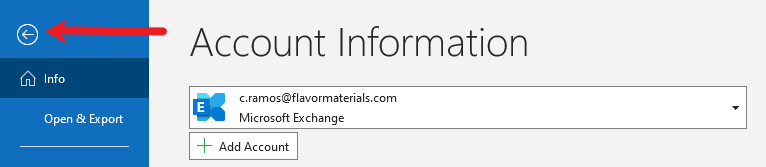
10. Select the arrow on the top left corner to return back to your Outlook Mailbox
Was this article helpful?
That’s Great!
Thank you for your feedback
Sorry! We couldn't be helpful
Thank you for your feedback
Feedback sent
We appreciate your effort and will try to fix the article